Microsoft Teams
The Success.co Microsoft Teams app brings the full power of the EOS Traction Software directly into Microsoft Teams. Mainly create Todo, Issue, Headlines directly from Microsoft teams app. User can also access V/TO, meeting pulse, Rocks, Scorecards, Issues, and Accountability Chart without leaving Teams.
Features
- Dashboard Access: View your Success.co dashboard directly within Teams
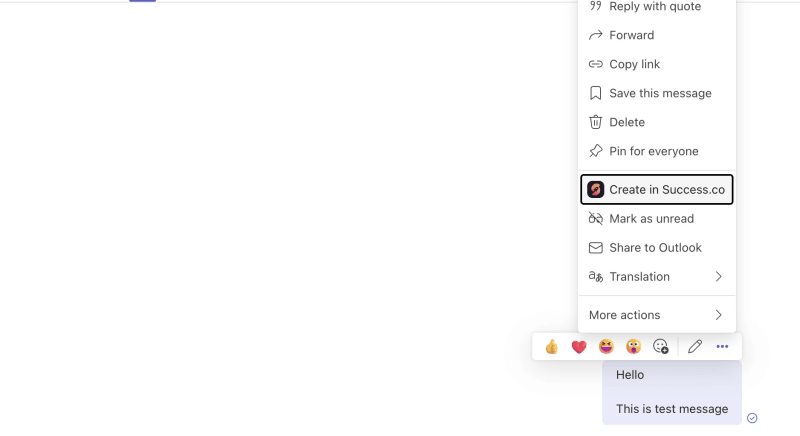
- From Message: Create Todos, Issues, and Headlines directly from Teams messages
- Compose Extension: Create Todos, Issues, and Headlines directly from Teams conversations
Installation
For Individual Users
- Open Microsoft Teams (desktop or web)
- Navigate to Apps in the left sidebar

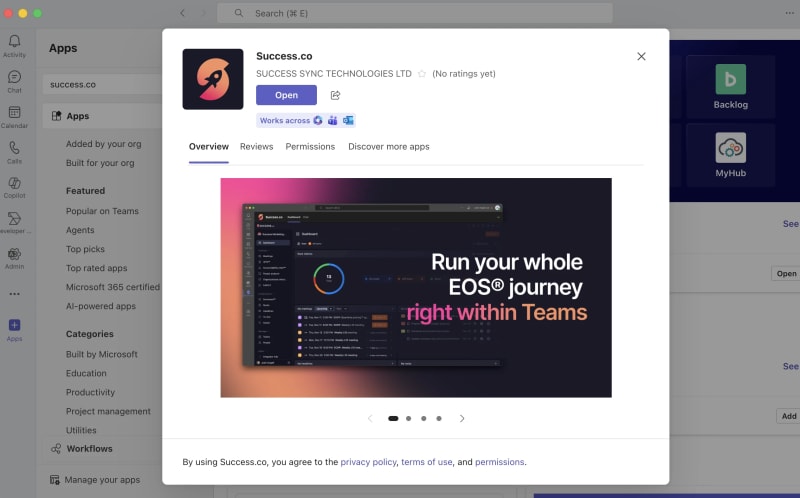
Search for “Success.co” then click Add to install the app. Select Open after installation is complete.
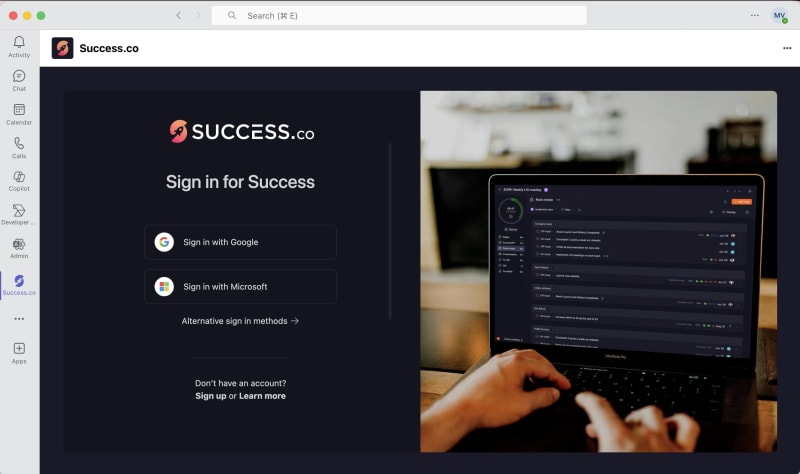
Login to Success.co
Team / Organization Deployment
- Contact your Microsoft Teams administrator to request access to the app.
- The administrator can install the app organization-wide using the Microsoft Teams Admin Center.
- Once deployed, the app will be automatically available to all employees in the organization without requiring individual installation.
How an Admin Installs the App for All Employees (Default Installation)
An administrator can deploy the app to everyone in the company by following these steps:
- Sign in to the Microsoft Teams Admin Center.
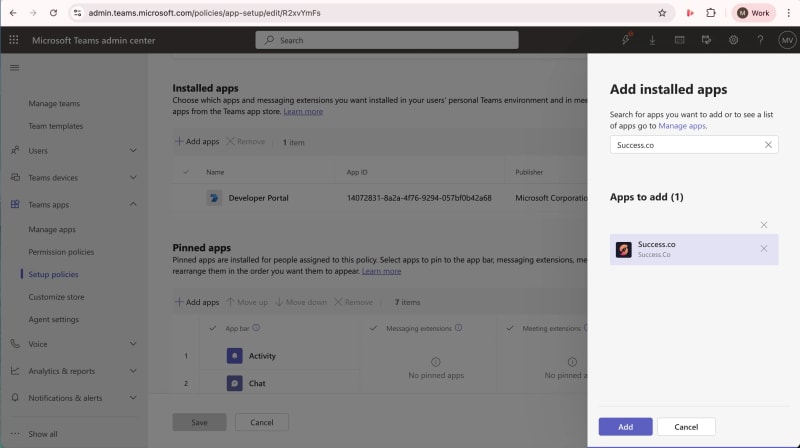
- Go to Teams apps → Setup policies.
- Select the Global (Org-wide default) policy or create a new setup policy.
- Under Installed apps, click Add apps and select the required app.
- (Optional) Under Pinned apps, pin the app so it appears by default in the Teams sidebar for all users.
- Save the policy.
Once applied, the app will be automatically installed (and pinned if configured) for all users covered by the policy.
Getting Started
Accessing the Dashboard
- After installation, click on Success.co in the left sidebar under Apps
- The Dashboard tab will open, showing your Success.co dashboard
- Sign in with your Success.co account (if not already authenticated)
- You’ll see your EOS tools and data directly in Teams
Using the Compose Extension
The compose extension allows you to create items in Success.co directly from Teams conversations:
- In any Teams chat or channel, click the 💬 (compose extension) icon in the message box
- Select Success.co from the list of apps
- Choose “Create in Success.co”
- A form will open where you can:
- Select the type of item (Todo, Issue, or Headline)
- Enter a title
- Add a description
- Set priority
- Set a due date
- Click Create to save the item to Success.co
Choose what you want to create.

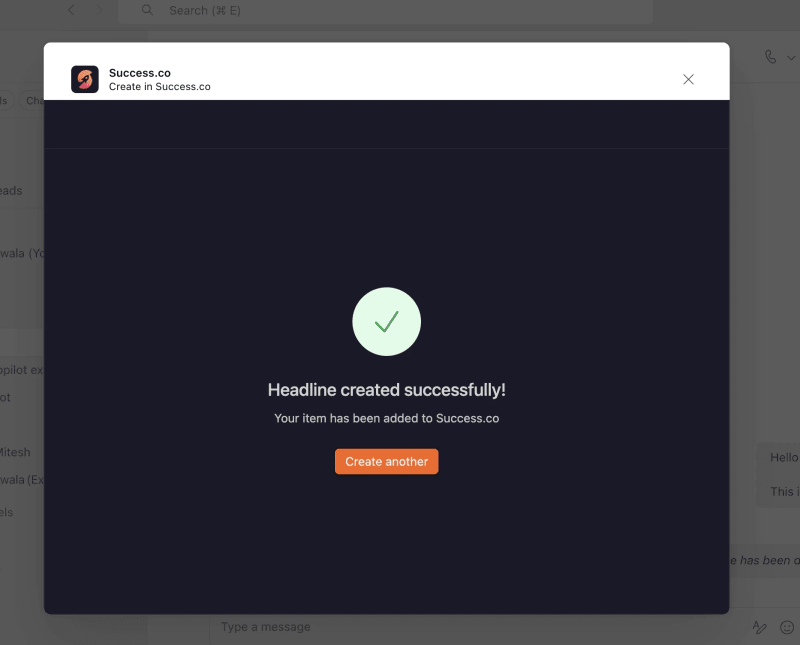
After creating an item, you'll receive this confirmation message.