We’re thrilled to announce our newest integration: Success.co ↔ ClickUp.
Now your EOS® to-dos in Success.co and your tasks in ClickUp stay perfectly in sync—no copy-pasting, no juggling between tools.
What the Integration Does
Once enabled, your Success.co to-dos and ClickUp tasks update automatically in both directions. The following fields are synced:
- Title / Name
- Description
- Due date
- Assigned user
- Priority
- Status
Make a change in one tool and it appears in the other within seconds. If your team works in Monday.com instead, there's a Monday.com sync too.
Why Use It
- Keep your EOS® to-dos visible where your team already works
- Eliminate duplicate data entry (for other tools, our Zapier integration can automate the hand-off)
- Reduce context switching and improve alignment
- Treat your EOS® to-dos like “real tasks” inside ClickUp
Key Benefits
- Automatic two-way sync — no manual push/pull
- Smart field mapping — only changed fields update
- Visual cues — in Success.co you’ll see the ClickUp icon, a link to the task, and a manual resync button
- Resilient design — if users or fields are missing, sync continues safely
How to Set It Up
Enabling the integration takes about a minute. Here’s how:
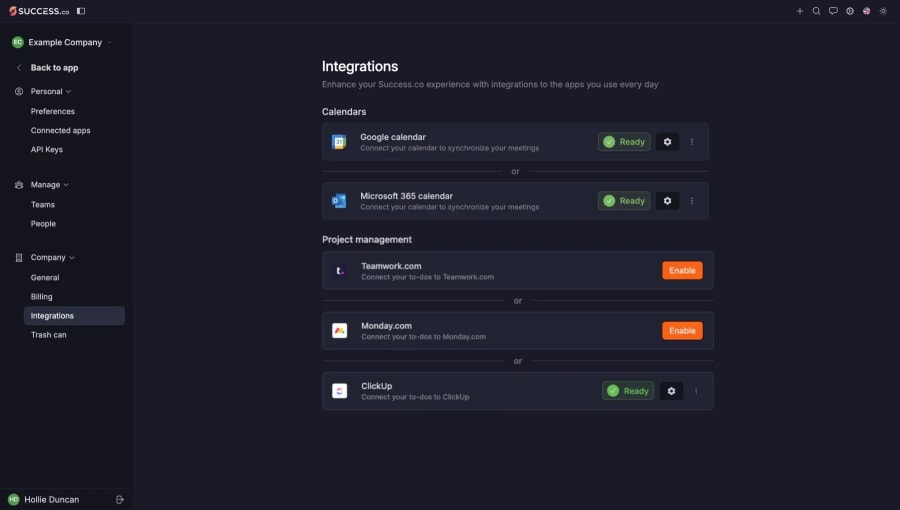
- In Success.co, go to Settings → Integrations
- Click Enable next to the ClickUp integration
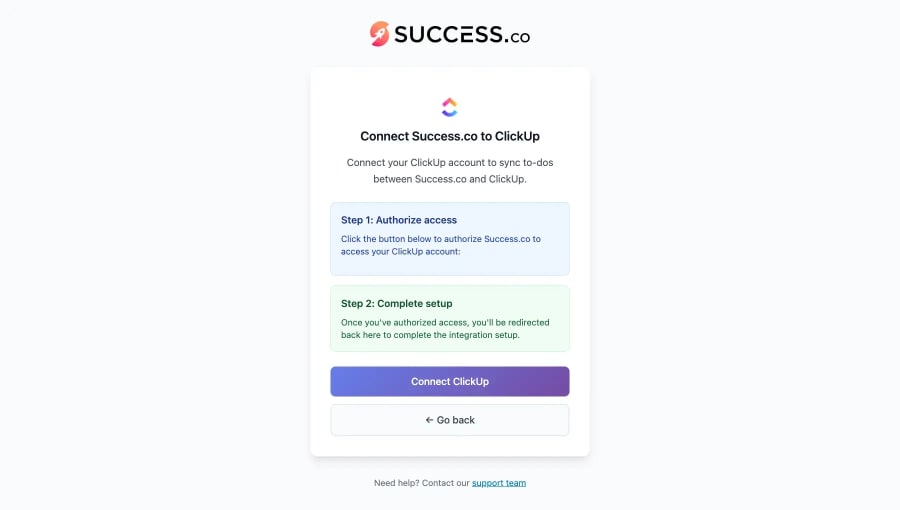
- Authorize Success.co to connect to ClickUp (log in / grant permission)
- Select the ClickUp workspace to connect
- Choose which space in ClickUp to sync with
- Pick the list where tasks should appear
- Map which statuses in ClickUp correspond to “To Do” and “Done” in Success.co
- Click Finish
You’ll see a green “enabled” status. On each to-do you’ll see:
- A ClickUp icon
- A sync status
- A link to the matching ClickUp task
- A manual resync button
For detailed screenshots, see our ClickUp integration guide. If you'd rather build your own connection, see the Success.co public API.
Important Notes & Limitations
Every integration has edge cases. Here’s what you should know:
- Priority mapping: We do our best to match ClickUp priorities. Common mappings: High ↔ High, Medium ↔ Medium, Low ↔ Low, None ↔ No priority, Urgent → High.
- Team/List changes: Changing a to-do’s team in Success.co doesn’t move the already-synced ClickUp task. Move it manually in ClickUp if needed.
- User assignments: We match by email. If the user doesn’t exist or lacks permission in ClickUp, the assignment may be left blank. ClickUp allows multiple assignees; Success.co supports one, so we pick the first.
- Switching project management tools: Once a to-do is synced to ClickUp, it can’t be moved to another PM system. To switch, duplicate the to-do, sync the new copy, and delete the original.
- Downtime: External API issues (e.g. ClickUp outages) may temporarily affect sync. Use the manual resync button to recover.
Full details are in the ClickUp integration guide. To see what else connects, browse all Success.co integrations.
Start Syncing Today
Enable the ClickUp integration and bring your EOS® to-dos into your team’s central workflow.
If you run into any issues, our support team is ready to help.
And if this integration saves your team time, we’d love to hear your story.