We’re excited to announce our newest integration: Success.co ↔ Asana. Now your EOS® to-dos in Success.co and your tasks in Asana stay in flawless sync — no more manual copying, constant context switching, or forgotten action items.
What the Integration Does
Once enabled, your Success.co to-dos and Asana tasks will update automatically in both directions. The following fields are synced (when relevant):
- Title / Name
- Description
- Due date
- Assigned user
- Priority
- Status
Make a change in one tool, and within seconds it appears in the other. If part of your team works in ClickUp instead, there’s a two-way ClickUp sync too.
When you view a to-do in Success.co, you’ll see:
- An Asana icon
- A sync status indicator
- A direct link to the task in Asana
- A manual resync button (for edge cases)
Why Use It
- Keep your to-dos visible in your primary workflow
- Eliminate duplicate data entry
- Reduce context switching and boost alignment
- Make your EOS® to-dos “first-class tasks” inside Asana
Key Features
- Automatic two-way sync — no manual push/pull
- Smart field mapping — only changed fields update
- Visual cues — in Success.co you’ll see the Asana icon, a link to the task, and a manual resync button
- Resilient design — if users or fields are missing, sync continues safely
- Return link - We append a link back to Success.co in the description on Asana tasks
- Custom team destinations - We allow you to configure custom destinations for each of your teams so your L10 todos sync to the right place
How to Set It Up
Here’s how to get started:
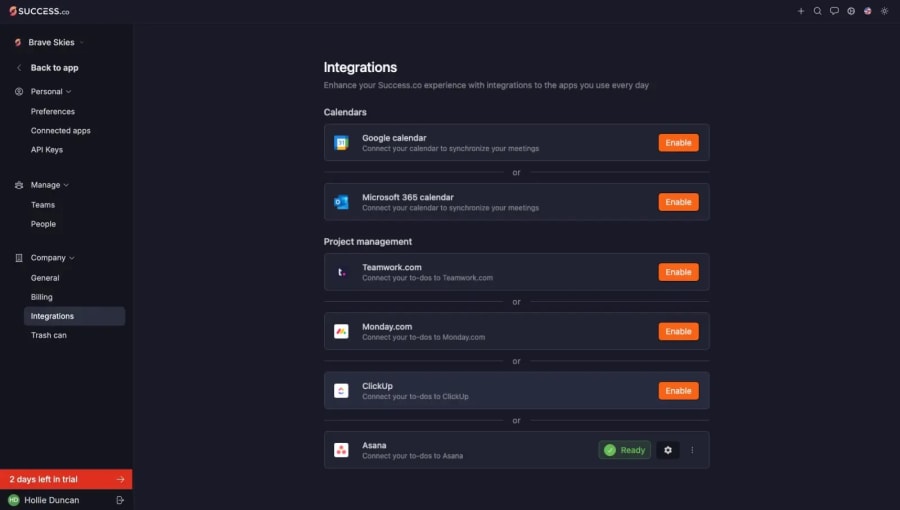
- In Success.co, go to Settings → Integrations
- Click Enable next to the Asana integration
- Authorize Success.co to connect to your Asana account
- Select which Asana project you wish to sync with
- Choose which section within that project to sync to
- Click Finish
- You’ll see an “enabled” indicator once the setup is complete
You’ll see a green “enabled” status. On each to-do you’ll see:
- An Asana icon
- A sync status
- A link to the matching Asana task
- A manual resync button
For detailed screenshots, see our Asana integration guide.
Important Notes & Limitations
Every integration has edge cases. Here’s what you should know:
- Priority mapping: Add a column named "Priority" to your Asana board so priorities can sync, and use simple names like High, Medium and Low. Custom names may not sync correctly.
- Team changes: Set the right team before you create a to-do. Changing a to-do’s team later doesn’t move the already-synced task: it stays in the original Asana project.
- User assignments: Make sure the person you assign has an Asana account and access to the destination project. If a user isn’t found we keep the existing assignment, and if they lack project access Asana will refuse the sync. Run a manual sync after assigning someone to check it went through.
- Downtime: External API issues (e.g. Asana outages) may temporarily affect sync. Use the manual resync button to recover.
Full details are in the Asana integration guide.

Start Syncing Today
Enable the Asana integration and bring your EOS® to-dos into your team’s everyday workflow. If this integration saves you time or helps your team stay focused, we’d love to hear your story. Using other tools as well? See all Success.co integrations.
For apps without a native sync, the Zapier integration can connect them to Success.co. If you’d rather build your own, there’s the Success.co public API.