Google Tasks Integration Guide
The Google Tasks integration sends the To-Dos you own in Success.co to your own Google Tasks list, so the commitments from your Level 10 Meeting™ sit where you already check your work every day.
It's a personal integration: each person connects their own Google account, and only the To-Dos they own are synced. You never see your teammates' To-Dos in your Google Tasks, and they never see yours. It works with both Google Workspace and personal Gmail accounts.
New To-Dos appear in Google Tasks within a few seconds of being created. You don't need to wait for the meeting to end.
Before you start
Setting up Google Tasks takes two steps, done by different people:
- Turn on Google Tasks for the company. Done once by an Admin, in Settings > Integrations.
- Connect your Google account and choose a list. Done by each person who wants their To-Dos in Google Tasks, in Settings > Personal > Connected apps.
You'll need a Google account with Google Tasks. If your company already syncs To-Dos to Asana, ClickUp, Monday.com or Teamwork, To-Dos go there instead (see Things to know).
Step 1: Turn on Google Tasks (Admins)
- Click your company logo, then Settings > Integrations.
- Under Project management, find Google Tasks ("Connect your to-dos to Google Tasks").
- Click Enable.
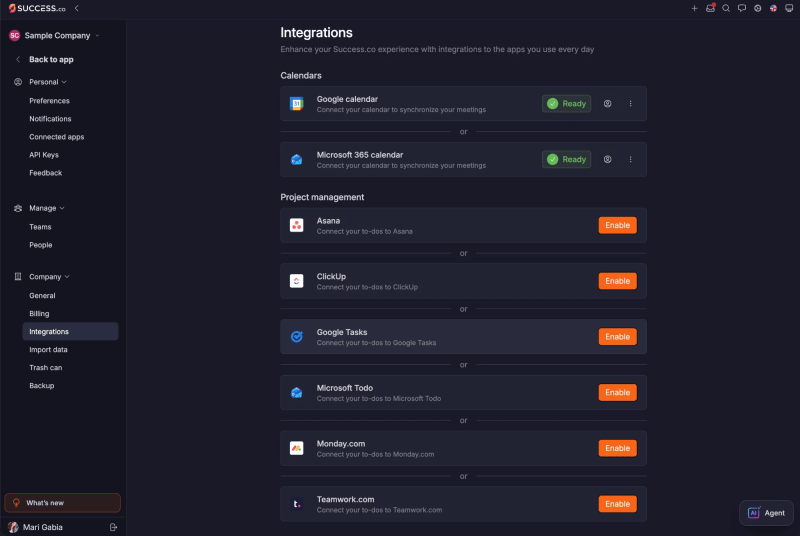
This makes Google Tasks available to everyone in the company. It doesn't connect anyone's Google account or send any To-Dos yet: each person does that in Step 2.
Step 2: Connect your Google account (everyone)
- Click your company logo, then Settings > Personal > Connected apps.
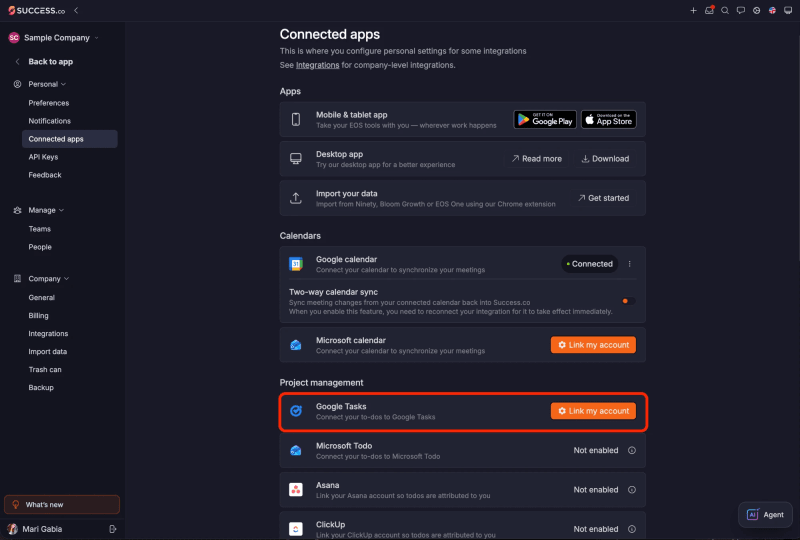
- Under Project management, click Link my account next to Google Tasks.
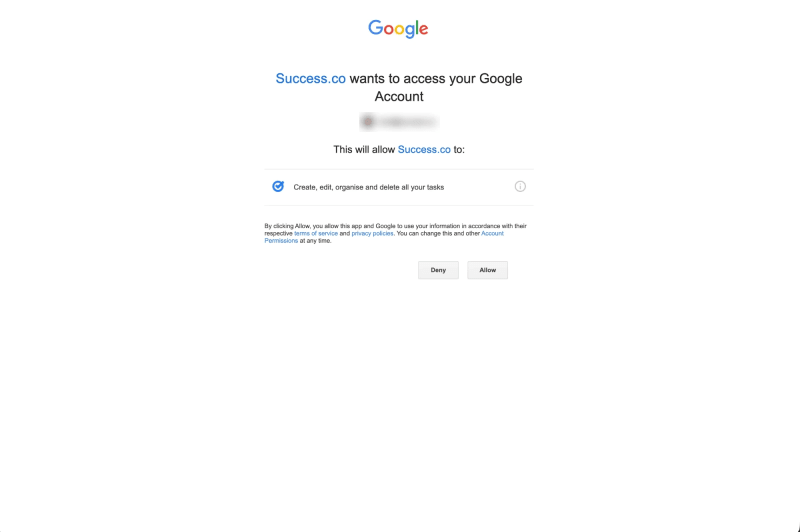
- Sign in to Google if asked, then click Allow to let Success.co manage your tasks. This is the only permission Success.co asks for.
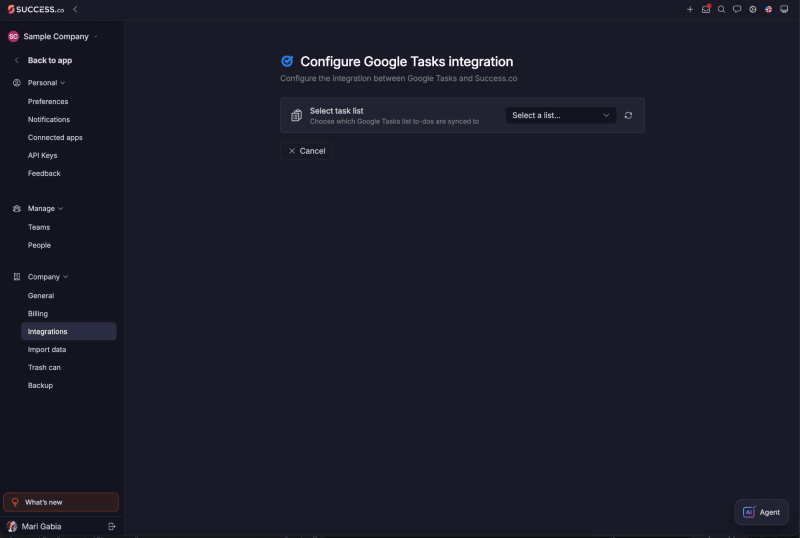
- You'll come back to Success.co, on the Configure Google Tasks integration page. Under Select task list, choose the list your To-Dos should go to. If you've just created a list in Google Tasks and it isn't showing, click the reload icon next to the list.
- When you see Integration is ready, click Finished.
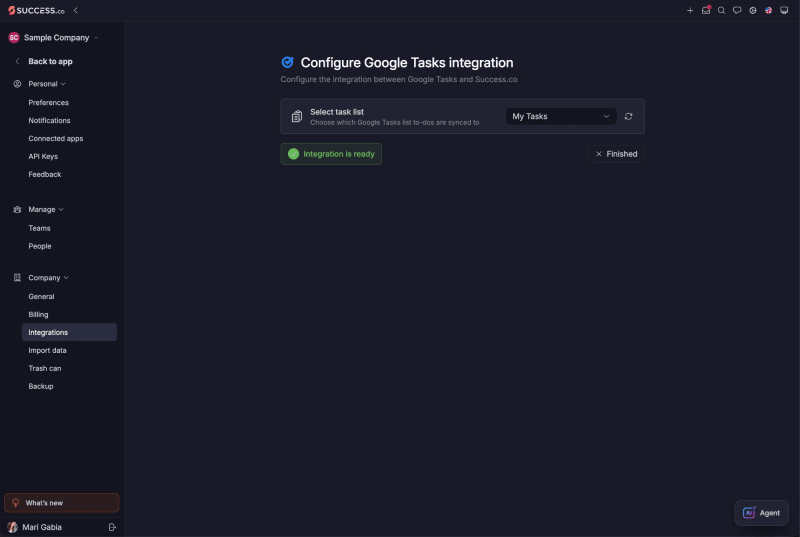
If you don't choose a list, your To-Dos go to your default Google Tasks list.
What syncs
Your To-Dos and Google tasks stay in step for these fields. Changes made in either app are copied to the other, except for priority.
- Title: the task's title.
- Description: the task's notes, as plain text. Formatting such as bold or links is removed.
- Due date: the task's due date.
- Complete or not complete: whether the task is completed.
- Priority (High, Normal, Low): the task's position in the list. Set priority in Success.co; reordering tasks in Google Tasks doesn't change the To-Do's priority.
Also:
- If the same field is changed in both apps before they sync, the Success.co change is kept.
- Deleting a To-Do in Success.co removes its task from Google Tasks.
- Google Tasks has no owners or assignees, so the owner is managed in Success.co only.
What doesn't sync
- Private To-Dos. These never go to Google Tasks, whether they're created in the app, through an AI assistant or through the API.
- To-Dos on a private team. To have a To-Do synced, create it as a team To-Do on a regular team and make yourself the owner.
- To-Dos owned by someone else. Only To-Dos you own are synced, even if you created the To-Do for someone else.
- Other items. Issues, Rocks, Headlines and Milestones aren't part of this integration.
Checking a To-Do's sync status
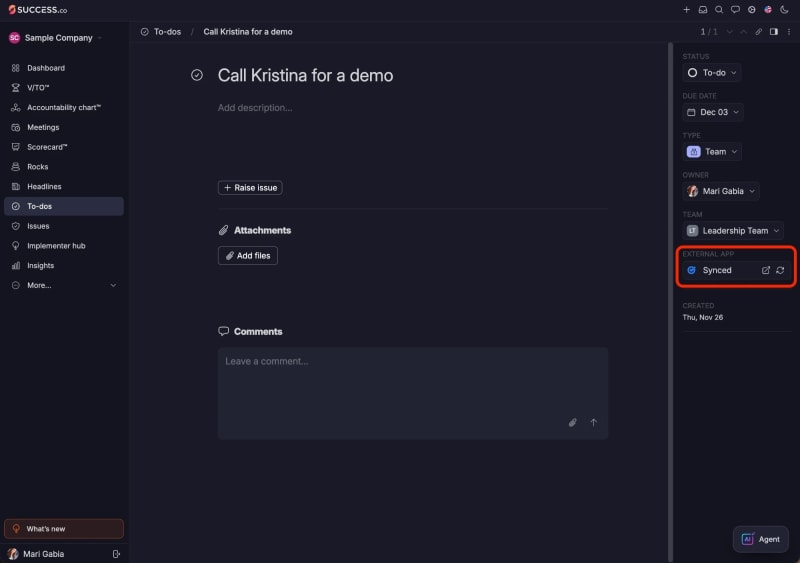
Open a To-Do you own. On the right, under External app, you'll see the Google Tasks icon and the To-Do's sync status, such as Synced. Other people don't see this on your To-Dos.
- Click the open icon to open your Google Tasks list. Google Tasks doesn't have links to a single task, so the list opens rather than the task itself.
- If a To-Do looks out of date, click the resync icon to sync it again straight away.
Things to know
- Changing a To-Do's owner. When a synced To-Do gets a new owner, its task is removed from the previous owner's Google Tasks. If the new owner has Google Tasks connected, the To-Do is added to their list instead.
- One personal task app at a time. You can sync your To-Dos to Google Tasks or Microsoft To Do, not both. Connecting Google Tasks disconnects Microsoft To Do if you had it connected.
- Company-wide To-Do apps come first. If your company syncs To-Dos to Asana, ClickUp, Monday.com or Teamwork, To-Dos go there rather than to personal Google Tasks lists.
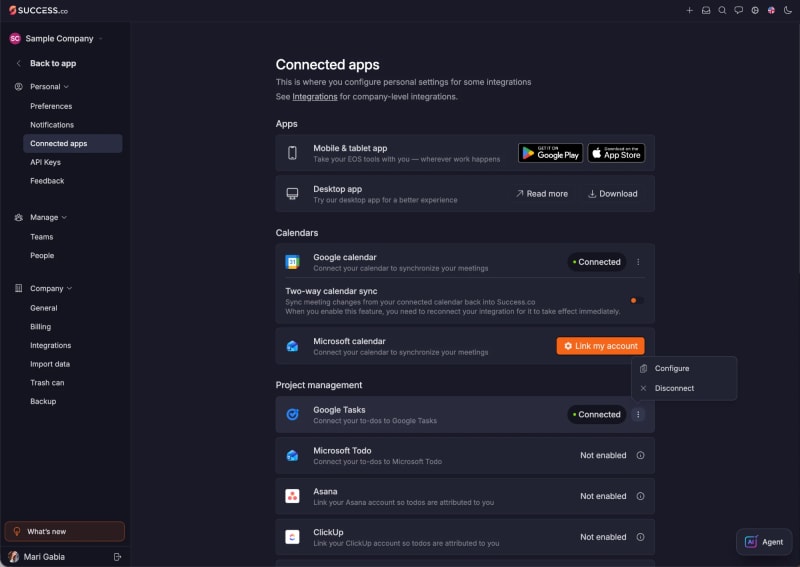
- Changing your list. In Settings > Personal > Connected apps, click the three-dot icon next to Google Tasks, choose Configure and pick a different list.
- Disconnecting. In Settings > Personal > Connected apps, click the three-dot icon next to Google Tasks and choose Disconnect. This removes Success.co's access to your Google account. Tasks already in your Google Tasks list stay there.
Tip: see your To-Dos in Google Calendar. Google Calendar can show your Google Tasks on the days they're due. In Google Calendar, turn on Tasks under My calendars, and synced To-Dos with a due date appear on your calendar. This is a Google feature, so its settings live in Google Calendar, not Success.co.
Frequently asked questions
Why isn't my To-Do showing in Google Tasks?
Check that:
- You own the To-Do.
- It's a team To-Do, not a private one.
- Its team isn't a private team.
- You've connected Google Tasks in Settings > Personal > Connected apps.
- Your company doesn't sync To-Dos to Asana, ClickUp, Monday.com or Teamwork.
If all of those are true, open the To-Do and click the resync icon under External app.
Will I see my teammates' To-Dos?
No. Each person connects their own Google account, and only their own To-Dos sync.
Do I have to wait until the meeting ends?
No. To-Dos sync as soon as they're created or changed.
Can I set priority from Google Tasks?
No. Priority is set in Success.co. Moving tasks around in Google Tasks doesn't change a To-Do's priority.
Can I use Google Tasks and Microsoft To Do together?
No. You can connect one of them at a time.
Does it work with a personal Gmail account?
Yes. It works with both Google Workspace and personal Gmail accounts.